
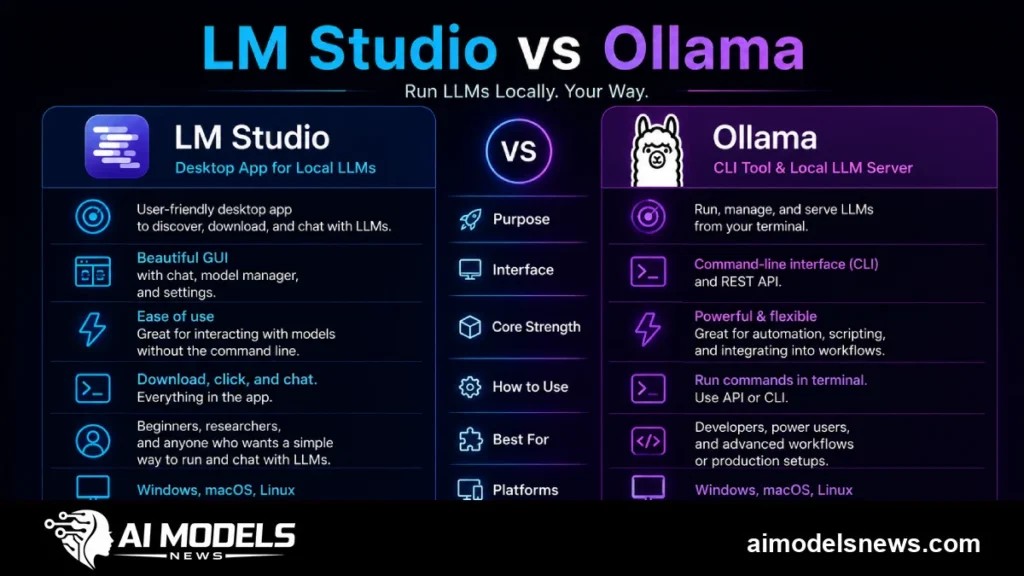
Choosing between LM Studio and Ollama is the first real decision most people face when they start running local AI models on their own hardware. Both tools let you download and chat with open-weight models without sending data to the cloud, but they are built for very different workflows.
LM Studio is a polished desktop app with a graphical interface, while Ollama is a lightweight command-line engine with a developer-friendly API. The lm studio vs ollama question is really a question about how you prefer to work.
This comparison breaks down installation, model management, performance, context handling, and API support. By the end you will know exactly which runner fits your setup, whether you are a developer or a casual user.
LM Studio vs Ollama at a Glance
Before diving into the details, here is a side-by-side summary of the features that matter most. The two tools overlap on the basics but diverge sharply on interface and automation.
| Feature | LM Studio | Ollama |
|---|---|---|
| GUI | Full desktop app for Windows, macOS, Linux | No official GUI (third-party frontends only) |
| CLI | Available via lms command, optional | Primary interface, fully featured |
| API | OpenAI-compatible local server, configurable port | OpenAI-compatible API on port 11434 |
| Model formats | GGUF (primary), some MLX support on macOS | GGUF via Modelfile, curated library |
| VRAM handling | Visual GPU offload slider, per-model settings | Automatic offload, tunable via env vars and Modelfile |
| Offline use | Fully offline after model download | Fully offline after model download |
| License | Free for personal use, proprietary | Open source (MIT) |
Both runners are built on top of llama.cpp under the hood for GGUF inference, so raw token speed is often similar. The real differences are in workflow, not benchmarks. For a deeper look at the engine layer, see our llama.cpp vs Ollama comparison.
Installation and Setup
Installing LM Studio
LM Studio installs like any desktop application. Download the installer from the official site, run it, and you are ready to search for models within a minute.
There is no terminal step required. On first launch it detects your GPU and available VRAM, then suggests models that will actually fit on your machine.
Installing Ollama
Ollama offers installers for macOS and Windows, plus a one-line script for Linux. The Linux install is a single curl command.
curl -fsSL https://ollama.com/install.sh | shAfter installation, Ollama runs as a background service. You pull your first model from the terminal, and the daemon handles the rest.
ollama pull llama3.1Both installs are quick, but Ollama assumes you are comfortable in a terminal. LM Studio never asks you to open one.
Model Management
LM Studio: Browse, Filter, Download
LM Studio has a built-in model browser connected to Hugging Face. You can search, filter by quantization and file size, and see a compatibility estimate before downloading anything.
This is a genuine advantage for newcomers. Picking the wrong quantization wastes gigabytes of bandwidth, and the GUI makes that mistake hard to make.
Ollama: Pull, List, Remove
Ollama treats models like container images. You pull from its curated registry, list what you have, and remove what you no longer need.
Each registry tag maps to a specific quantization, so you choose a variant by name. For example, pulling the 8B tag of Llama 3.1 grabs the default Q4 quantization, which balances quality against a roughly 5 GB download.
ollama listollama rm llama3.1You can also import any GGUF file from Hugging Face by writing a short Modelfile. That makes Ollama nearly as flexible as LM Studio, just with more typing.
ollama create my-model -f ModelfileFor automation, Ollama wins easily. Model downloads can live inside shell scripts and CI pipelines, which a GUI simply cannot do.
Performance and VRAM Handling
Overhead and Inference Speed
Because both tools lean on llama.cpp for GGUF models, generation speed is broadly comparable on identical hardware and quantization. Ollama has a slight edge in memory footprint because it carries no desktop UI.
LM Studio’s Electron-based interface uses a few hundred megabytes of RAM on its own. That rarely matters on a 32 GB workstation, but on an 8 GB laptop it can be the difference between fitting a model and not.
GPU Offload Controls
LM Studio exposes GPU offload as a slider: you choose how many layers go to the GPU, and it shows the predicted VRAM cost in real time. Partial offload for oversized models is trivial to set up.
Ollama offloads automatically when a compatible GPU is present, and it falls back to CPU gracefully. Advanced tuning happens through environment variables rather than a settings panel.
OLLAMA_NUM_GPU_LAYERS=35 ollama run llama3.1Casual users will prefer the slider. Power users who script everything will prefer environment variables.
Context Length Handling
Context length is where many local setups quietly fail. Both runners default to conservative context windows, often 4096 tokens, even when a model supports far more.
In LM Studio you raise the limit with a per-model slider in the load settings, and the app warns you about the extra VRAM. Longer contexts consume more memory for the KV cache, so the warning is worth heeding.
In Ollama you set the num_ctx parameter, either in a Modelfile or per request through the API. There is no warning system, so you need to know your VRAM budget yourself.
ollama run llama3.1 --ctx-size 32768For long-document work, LM Studio’s guardrails help beginners avoid out-of-memory crashes. Developers integrating via API will find Ollama’s parameter-based approach cleaner to automate.
OpenAI-Compatible API and Local Servers
Ollama on Port 11434
Ollama exposes a REST API on localhost port 11434 as soon as the service runs. Any tool that speaks the OpenAI API can point at it by changing the base URL.
curl http://localhost:11434/api/generate -d '{"model": "llama3.1", "prompt": "Hello"}'This always-on design makes Ollama the default backend for hundreds of open-source projects. Our guide to the Ollama local API server walks through securing and exposing it on a network.
LM Studio’s Local Server
LM Studio includes its own OpenAI-compatible server, but you start it manually from the Developer tab. It serves whichever model you have loaded, with endpoints for chat completions, completions, and embeddings.
The trade-off is clear: Ollama’s API is headless and persistent, ideal for servers and background services. LM Studio’s server is convenient for testing API calls while you experiment in the chat UI, but it depends on the app staying open.
Ollama vs LM Studio vs GPT4All
A quick word on the third option people often raise. GPT4All, like LM Studio, is a desktop GUI app, but it adds a local document-chat feature called LocalDocs out of the box.
In the ollama vs lm studio vs gpt4all debate, GPT4All suits users who mainly want to chat with their own files, LM Studio suits users who want the broadest model control in a GUI, and Ollama suits anyone building software on top of local models. None of them is wrong; they optimize for different jobs.
Which Runner Should You Choose?
Choose LM Studio If You Are a Casual User
- You want a graphical chat interface with zero terminal work.
- You like browsing Hugging Face models with compatibility hints.
- You want visual control over GPU offload and context length.
- You occasionally test API calls but mostly chat interactively.
Choose Ollama If You Are a Developer
- You are integrating local models into scripts, apps, or pipelines.
- You need a persistent, headless API on port 11434.
- You want open-source licensing for commercial projects.
- You manage models through automation, Docker, or CI.
Running both is also legitimate. Many developers keep LM Studio for quick model evaluation and Ollama as the production backend for their tools.
Bottom Line
The lm studio vs ollama decision comes down to interface and intent. LM Studio is the friendliest way to explore local models, with a GUI that handles discovery, VRAM budgeting, and context tuning for you.
Ollama is the better foundation for anything you build, thanks to its scriptable CLI, always-on API, and open-source license. Pick the tool that matches how you actually work, and you will rarely need to switch.