Local Deployment & Hardware
Local AI means running AI models directly on hardware you control, without relying entirely on cloud APIs or sending your prompts and documents to third-party services.
This hub covers everything you need to run local AI models, from choosing the right runtime and model to installing Ollama, managing model storage, configuring GPUs, connecting local models to applications, and troubleshooting common problems.
Whether you want to run AI on a laptop, build a private chatbot, use local models for coding, or create a developer workflow around a local API, these guides provide practical commands, configuration examples, model recommendations, and hardware guidance.
Start With Ollama
For many users, Ollama is one of the easiest ways to get started with local AI. It provides a simple command-line interface, model management, and a local API that applications can use to communicate with your models.
If you’re new to Ollama, start with our Ollama Complete Guide: Setup, Models, Commands, GPU & Troubleshooting.
This guide covers the complete Ollama workflow, including installation, models, commands, GPU configuration, storage, API usage, and troubleshooting.
Install Ollama on Your Operating System
Choose the installation guide for your platform:
- How to Install Ollama on Windows 11 & Windows 10 — Complete Windows installation and setup guide.
- How to Install Ollama on Ubuntu & Linux Servers — Install and configure Ollama on Ubuntu and Linux systems.
- How to Install Ollama on macOS: Apple Silicon, Intel & Homebrew — Set up Ollama on Mac with Apple Silicon or Intel hardware.
Choose the Right Local AI Runner
Ollama isn’t the only way to run models locally. Depending on your workflow, you may prefer a graphical interface, lower-level control, or a different inference engine.
Our comparisons help you choose the right tool:
- LM Studio vs Ollama — Compare GUI-based and CLI-based local AI workflows, model management, performance, and ease of use.
- llama.cpp vs Ollama — Compare performance, control, configuration, and ease of deployment.
- Ollama Alternatives — Explore alternatives when Ollama isn’t the right fit for your workflow.
Choose the Right Local AI Model
The best local model depends on your workload, available RAM and VRAM, context requirements, and the type of tasks you need to perform.
A smaller, well-quantized model can often be a better practical choice than a much larger model that exceeds your available hardware or runs too slowly.
For coding and specialized workloads, see:
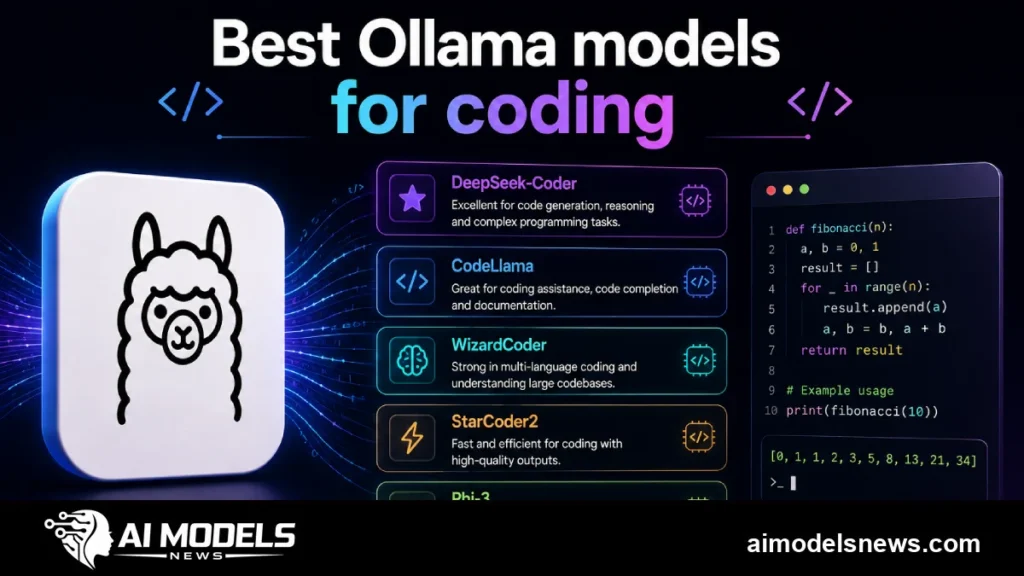
- Best Ollama Models for Coding and Roleplay — Compare coding-focused Ollama models, VRAM requirements, quantization, and practical use cases.
- Best Open-Source Vision Models — Explore open-source models capable of image and vision tasks.
When selecting a model, pay particular attention to model size, quantization, context length, RAM, and VRAM requirements rather than choosing a model solely because it has more parameters.
Install, Manage & Store Ollama Models
Local AI models can consume significant disk space, especially when you install multiple models or use larger parameter sizes.
Learn how to manage your Ollama installation:
- Ollama Model Storage Guide: Where Ollama Stores Models & How to Change Location — Find Ollama’s model storage locations and learn how to move models to another drive.
- How to Delete or Remove Ollama Models — Remove models from Windows, macOS, and Linux and reclaim disk space.
- Ollama Environment Variables & Modelfile Guide — Configure Ollama environment variables, model locations, Modelfiles, GPU behavior, and runtime settings.
Configure GPU, RAM & VRAM
Hardware configuration is an important part of running local AI efficiently.
Your available VRAM and RAM determine which models you can run comfortably and how much CPU/GPU offloading may be required.
Learn how to diagnose and optimize local inference:
- Fix Ollama GPU & Memory Errors — Diagnose CUDA detection problems, VRAM errors, GPU issues, and memory pressure.
- Ollama Troubleshooting Guide: Common Errors, Connection Fixes & Diagnostics — Troubleshoot common Ollama installation, model, API, GPU, and connection problems.
- Ollama Environment Variables & Modelfile Guide — Configure runtime behavior and optimize your local setup.
For hardware planning, consider the quantized model size, RAM, VRAM, context length, and expected workload rather than parameter count alone.
Run Ollama as a Local API
Ollama becomes much more powerful when you use it as a local inference server.
The Ollama API allows developers to connect local models to applications, scripts, automation tools, IDEs, and AI interfaces.
Start here:
- Ollama Local API Server Setup — Configure the Ollama API, port 11434, local access, LAN connections, and server behavior.
- AnythingLLM, Open WebUI & Ollama Setup — Connect Ollama with popular local AI interfaces and applications.
Once the API is running, you can build applications around your local models without sending every inference request to a cloud provider.
Troubleshoot Local AI Problems
Local AI setups can fail for predictable reasons: models may not load, GPUs may not be detected, VRAM may be insufficient, APIs may return errors, or applications may fail to connect to Ollama.
Use these troubleshooting resources:
- Ollama Troubleshooting Guide: Common Errors, Connection Fixes & Diagnostics — General Ollama troubleshooting and diagnostics.
- Fix Ollama GPU & Memory Errors — GPU, CUDA, VRAM, and memory-related problems.
- How to Delete or Remove Ollama Models — Remove problematic or unnecessary models and reclaim storage.
- Ollama Model Storage Guide — Understand where models are stored and how storage affects your setup.
Why Run AI Locally?
Running AI locally has several important advantages.
Privacy: Your prompts, documents, and data can remain on hardware you control rather than being sent to a cloud API.
Cost: For some high-volume workloads, local inference can reduce or eliminate recurring per-token API costs. However, hardware, electricity, maintenance, and setup costs should also be considered.
Control: You control the model, quantization, context configuration, system prompts, runtime, and software environment.
Offline access: Local models can continue working without an internet connection once the required software and models are installed.
The tradeoff is that you become responsible for the hardware, storage, software updates, model management, and troubleshooting. That’s why this hub brings the local AI workflow together in one place.
Your Local AI Learning Path
If you’re starting from scratch, follow this path:
1. Start with the Ollama pillar
Ollama Complete Guide: Setup, Models, Commands, GPU & Troubleshooting
2. Install Ollama
3. Choose your model
Best Ollama Models for Coding and Roleplay
4. Manage your models
- Ollama Model Storage Guide
- How to Delete or Remove Ollama Models
- Ollama Environment Variables & Modelfile Guide
5. Optimize your hardware
Fix Ollama GPU & Memory Errors