
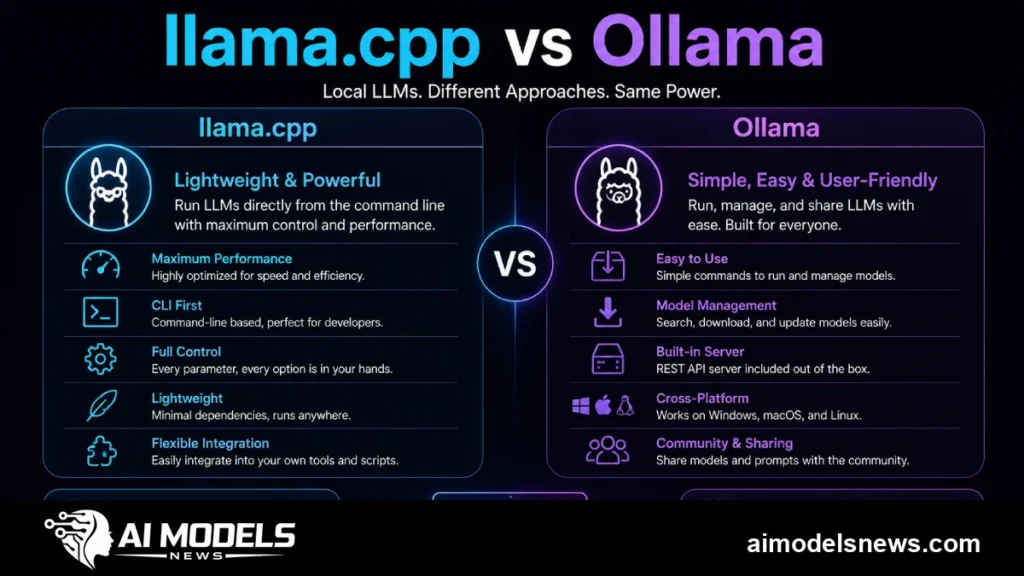
Choosing between llama.cpp vs Ollama is one of the first decisions you face when running local AI models on your own hardware. Both tools let you run quantized large language models on a laptop or desktop, but they sit at very different levels of abstraction.
Ollama promises a one-command install and a simple model library, while llama.cpp gives you direct access to the inference engine that Ollama itself is built on. That difference shapes everything from setup time to GPU tuning and scripting flexibility.
This comparison breaks down how the two tools differ in performance, quantization control, GPU backend support, and day-to-day workflow, so you can pick the right one for your local Ollama setup or bare-metal llama.cpp build.
Llama.cpp vs Ollama at a Glance
The table below summarizes the practical differences that matter most when deciding between the two tools. Details on each row follow in the sections below.
| Feature | llama.cpp | Ollama |
|---|---|---|
| Installation | Build from source or download release binaries | One-line installer or desktop app |
| Model format | GGUF files you download yourself | GGUF wrapped in Ollama registry blobs |
| GPU backends | CUDA, Metal, Vulkan, ROCm, SYCL (chosen at build time) | CUDA, Metal, ROCm (auto-detected) |
| Quantization control | Full: any GGUF quant, plus tools to quantize yourself | Limited to quants published in the registry |
| Context and sampling flags | Every engine flag exposed | Subset exposed via flags or Modelfile |
| API server | llama-server, OpenAI-compatible | Built-in REST API on port 11434 |
| Scripting | C/C++, Python bindings, CLI piping | REST API, CLI, official Python/JS libraries |
| Best for | Tinkerers, benchmarking, embedded use | Developers who want a model running in minutes |
How the Two Tools Relate
Ollama is not a competing inference engine. Under the hood, it embeds llama.cpp to actually load GGUF weights and generate tokens, then wraps it in a daemon, a model registry, and a friendly CLI.
This means the raw token generation speed on identical hardware and identical quantization is broadly similar. The real differences are what the abstraction layer adds and what it hides.
What the Ollama Abstraction Adds
Ollama handles model downloads, versioning, and storage for you, similar to how Docker manages container images. You pull a model by name and Ollama fetches the right GGUF blobs, tracks digests, and cleans up old layers.
It also runs a persistent server that keeps models hot in memory, manages GPU offloading automatically, and exposes a stable REST API. For application developers, that operational layer removes a lot of glue code.
What the Abstraction Costs
The trade-off is control. Ollama decides which llama.cpp build flags, GPU backends, and default sampling parameters you get, and it lags behind upstream llama.cpp releases by days or weeks.
New model architectures land in llama.cpp first, sometimes long before Ollama supports them. If you want bleeding-edge architectures, custom quantization schemes, or fine-grained memory tuning, the wrapper gets in the way.
Installation and Setup
Setup is where the two tools diverge most sharply. Ollama optimizes for a working model in under five minutes, while llama.cpp expects some comfort with a terminal and a compiler toolchain.
Installing Ollama
On Linux and macOS, installation is a single command. Windows users get a graphical installer from the Ollama website.
curl -fsSL https://ollama.com/install.sh | shAfter installation, running a model is one more command. Ollama downloads the weights on first use and starts an interactive chat session.
ollama run llama3.1The installer detects NVIDIA and AMD GPUs automatically and configures offloading without user input. On Apple Silicon it uses Metal out of the box.
Installing llama.cpp
With llama.cpp you either grab prebuilt release binaries from GitHub or compile from source. Compiling is where you unlock GPU backend choices.
git clone https://github.com/ggml-org/llama.cpp
cd llama.cpp
cmake -B build -DGGML_CUDA=ON
cmake --build build --config Release -j 8
Swap the backend flag for your hardware: -DGGML_METAL=ON on macOS, -DGGML_VULKAN=ON for cross-vendor GPU support, or -DGGML_HIP=ON for AMD ROCm. This build-time choice is a level of control Ollama never exposes.
You then download a GGUF model yourself, typically from Hugging Face, and point the CLI at the file.
./llama-cli -m llama-3.1-8b-instruct-q4_k_m.gguf -p "Explain quantization in one paragraph" -n 256Performance Comparison
Because Ollama runs llama.cpp internally, headline tokens-per-second numbers are usually close. But there are real scenarios where llama.cpp pulls ahead.
Raw Inference Speed
On the same model, quantization, and GPU layer count, both tools land within a few percent of each other. Ollama’s defaults are sensible, so casual users rarely see a dramatic gap.
Llama.cpp edges ahead when you tune. Flags like -ngl for GPU layers, -t for CPU threads, flash attention, and KV cache quantization let you squeeze out extra throughput that Ollama either hides or only partially exposes.
Memory Management and GPU Offloading
Ollama decides how many layers go to VRAM based on detected memory, and it can misjudge on multi-GPU or low-VRAM systems. If you hit out-of-memory failures there, see our guide on how to fix Ollama GPU errors for practical workarounds.
With llama.cpp you set the split explicitly, so a 24 GB card and a 12 GB card can each take a precise share of the model. That manual control is the difference between a model that runs and one that crashes.
Startup and Model Freshness
Llama.cpp releases ship almost daily, and support for new architectures often appears within days of a model launch. Ollama needs to integrate and test each upstream change, so its support lags.
If you benchmark brand-new models the week they drop, llama.cpp is usually the only option that works at all.
Model Management and Quantization
GGUF is the common file format, but the two tools handle it very differently. That affects both disk usage and how precisely you can trade quality for speed.
GGUF Handling
Llama.cpp treats GGUF files as plain files: you download exactly the quant you want, store it where you like, and delete it when done. There is no registry, no metadata layer, and no hidden duplication.
Ollama repackages GGUF weights into its own blob store under ~/.ollama/models. It is convenient, but importing a custom GGUF requires writing a Modelfile, and you lose direct file-level control.
Quantization Control
Llama.cpp ships tools to convert and quantize models yourself, from Q2_K up to Q8_0 and beyond. You can generate an unusual quant like Q3_K_S or an imatrix-optimized build that Ollama’s registry simply does not offer.
./llama-quantize model-f16.gguf model-q4_k_m.gguf Q4_K_MOllama limits you to the quants its maintainers publish per model tag, typically Q4_K_M and a couple of variants. For most users that is fine; for squeezing a 70B model into 24 GB of VRAM with the least quality loss, it is not.
Scripting, APIs, and Integration
Both tools can serve models to other applications, but they target different integration styles. Your choice here often matters more than raw speed.
Working with Ollama
Ollama runs a persistent server on port 11434 with a simple REST API plus official Python and JavaScript libraries. It is the fastest path from zero to a chat endpoint for a script or app.
curl http://localhost:11434/api/generate -d '{"model": "llama3.1", "prompt": "Hello"}'Because it is the most popular local runner, most third-party tools, UIs, and frameworks support Ollama as a backend out of the box. We covered how it stacks up against a GUI-first option in our LM Studio vs Ollama comparison.
Working with llama.cpp
Llama.cpp ships llama-server, an OpenAI-compatible HTTP endpoint, so anything built for the OpenAI API can point at it with a base-URL change.
./llama-server -m model.gguf -ngl 99 --port 8080Beyond the server, llama.cpp is a C/C++ library with Python bindings, so you can embed inference directly into an application with no daemon at all. For pipelines, the CLI also composes cleanly with standard Unix tools.
When to Choose Each
Neither tool is universally better. The right pick depends on how much control you need versus how much operational simplicity you want.
Choose Ollama when:
- You want a working local model in minutes with zero build tooling.
- You are building an app that talks to a model over a stable REST API.
- You value automatic GPU detection and managed model storage.
- Your team includes non-technical users who just need
ollama runto work.
Choose llama.cpp when:
- You need a specific quantization, including self-made or imatrix quants.
- You want to choose the GPU backend (Vulkan, SYCL) or tune memory splits manually.
- You benchmark new model architectures as soon as they release.
- You are embedding inference into C/C++ or Python code without a server daemon.
LocalAI as an Alternative
If neither fits, LocalAI is worth a look. It positions itself as a drop-in OpenAI API replacement and, in the localai vs ollama debate, its key advantage is breadth: it can run not just LLMs but also image generation, audio transcription, and embeddings through one API.
LocalAI also uses llama.cpp among its supported backends, so it inherits the same GGUF compatibility. The trade-off is heavier configuration, usually via YAML files and Docker, which puts it closer to llama.cpp’s learning curve than Ollama’s.
Bottom Line
Ollama is the right default for most people: it wraps llama.cpp in an installer, a registry, and an API that make local models feel like a managed service. You give up some control, but you gain a workflow that rarely breaks.
Llama.cpp is the tool for when that wrapper becomes a ceiling — custom quantization, unusual GPU backends, day-one model support, or embedded inference. Many power users keep both: Ollama for daily driving, llama.cpp for tuning and testing.